
Connecting your website with the Daobook API
Make an API key for your own website, app or WeChat Mini Program, hand it to your developer, and add a webhook so your site hears about changes.
Connecting your website with the Daobook API
The Daobook API lets your own website, app or WeChat Mini Program read what you offer for online booking and make, move and cancel bookings under your online-booking rules. Your developer builds the connection; you make the key it uses and keep it in your hands.
Prerequisites
- You are the account owner. Only the owner sees the Developer API section.
- The API is on for every Daobook business. Before your first key, accept the API terms of use with the Accept the API terms button, which sits at the top of the section until they are accepted.
Step 1: Open the Developer API section
Click "Settings" in the sidebar, open the "Integrations" tab and click "Developer API".
Step 2: Make a key
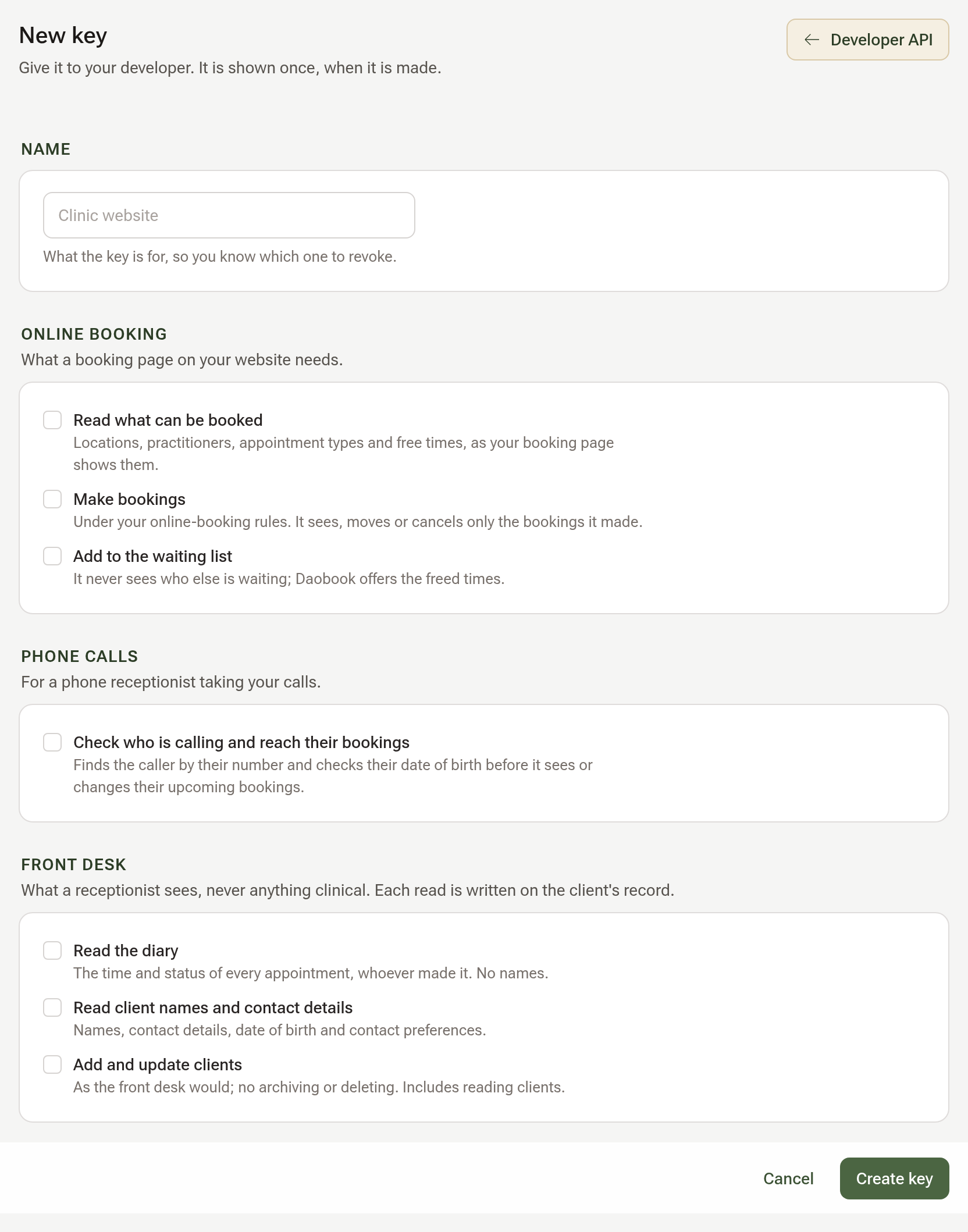
Click "New key" beside Keys. Give the key a Name that says what it is for, such as "Clinic website".
The access ticks come in three groups. Under Online booking, tick "Read what can be booked" and "Make bookings", and "Add to the waiting list" if your software should put people on your waiting list (it never sees who else is waiting). Under Phone calls, "Check who is calling and reach their bookings" is for a phone receptionist: it recognises a caller by their number and confirms their date of birth before it sees or changes that caller's own upcoming bookings, and every check is written to the client's record. Under Front desk, tick "Read the diary" only for software that needs to see every appointment, whoever made it, such as a reporting tool (times and status, never a name or a note); "Read client names and contact details" for software that needs to know who your clients are, such as a CRM or mailing tool; and "Add and update clients" only for software that should add clients or change their contact details (it includes reading them). Nothing under Front desk sees anything clinical, and each read is written on the client's record.
If your business has several locations, choose All locations or Only some locations and tick them. Click "Create key".
Step 3: Copy the key once
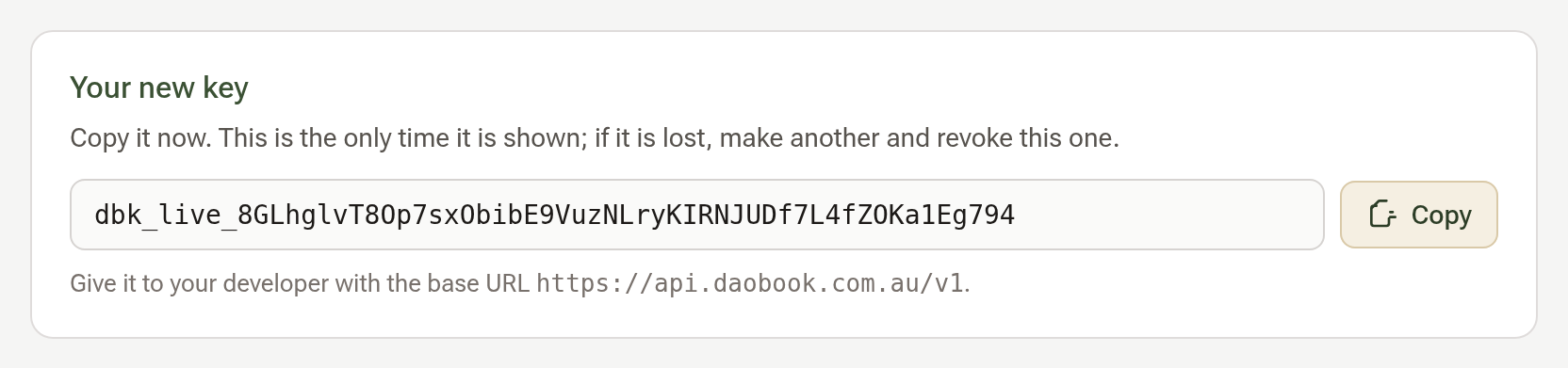
You are back on the Developer API section, where the key appears in Your new key with a Copy button. This is the only time it is shown, so copy it now and pass it to your developer in a safe way. If it is ever lost, make another and revoke this one.
Step 4: Give your developer the details
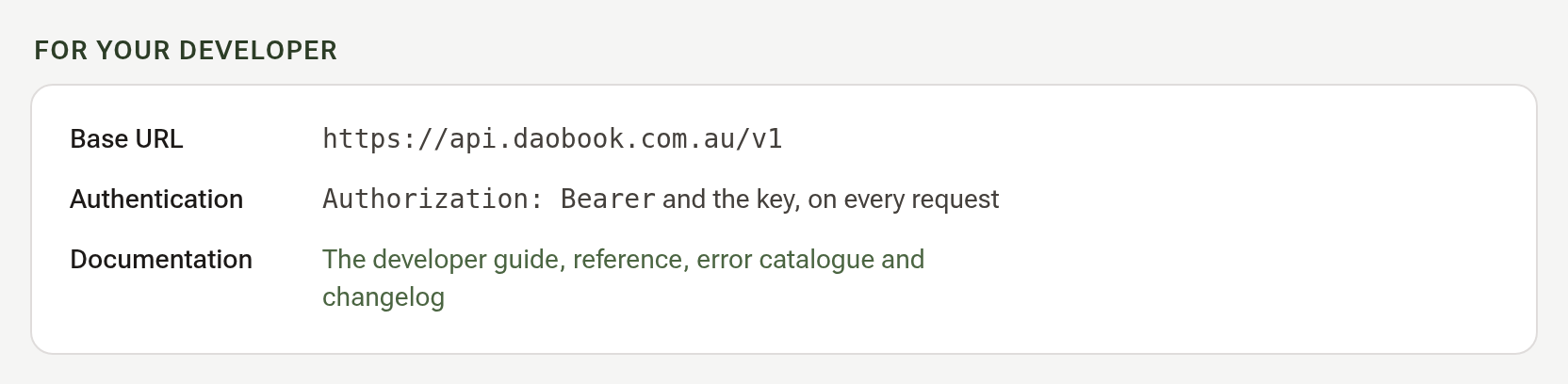
The For your developer group has everything they need: the base URL, how the key is sent, and the link to the developer documentation at daobook.com.au/developers. The key belongs on your server, never inside a web page or an app package.
Step 5: Add a webhook endpoint
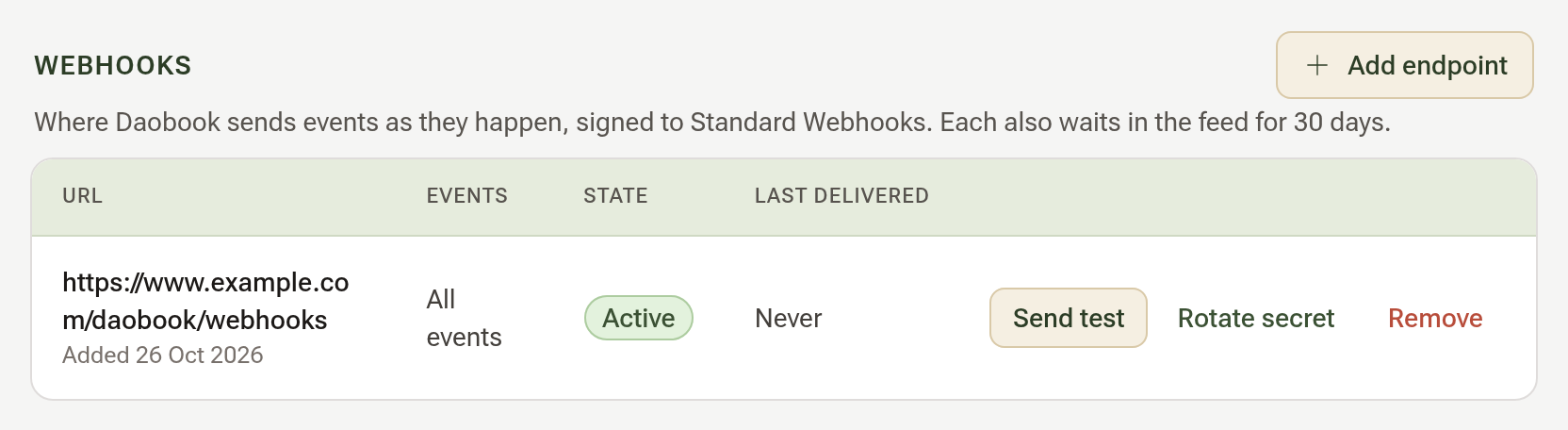
If your developer wants Daobook to tell your site when a booking is moved or cancelled, they give you an https address. Click "Add endpoint" beside Webhooks, enter the address under URL, choose All events or Only some events, and click "Add endpoint". If one of your keys reads the diary, the page also asks Which bookings: keep Only bookings made through the API for a website, or choose Every booking in the diary for software that should hear of every appointment; if one reads clients, a Client changes tick lets the endpoint hear when a client is added or changed. The endpoint's signing secret is shown once, back on the section; copy it for your developer. Send test on the endpoint's row sends a test event, and its result appears under Recent deliveries.
Tips:
- Make one key for each piece of software, so you can revoke one without touching the rest.
- If you think a key has leaked, click "Revoke" on its row straight away; everything using it stops at once. Then tell us at admin@daobook.com.au.