
Setting up sales tax for a US practice
Turn on sales tax at your own rate, choose which kinds of lines carry it, set a product on its own, and see it on your invoices.
Setting up sales tax for a US practice
Daobook can add sales tax to what your practice sells, at your own rate, while your consultations and treatments stay untaxed. Each state sets its own rules, and many counties and cities add to the rate, so this guide covers how the settings work rather than what your state taxes: check that with your accountant or your state's department of revenue.
Step 1: Open Sales Tax Configuration
Go to Settings, open the Billing & Payments tab and click Sales Tax Configuration. A new practice starts with sales tax switched off and no rate.
Step 2: Turn it on and give your rate
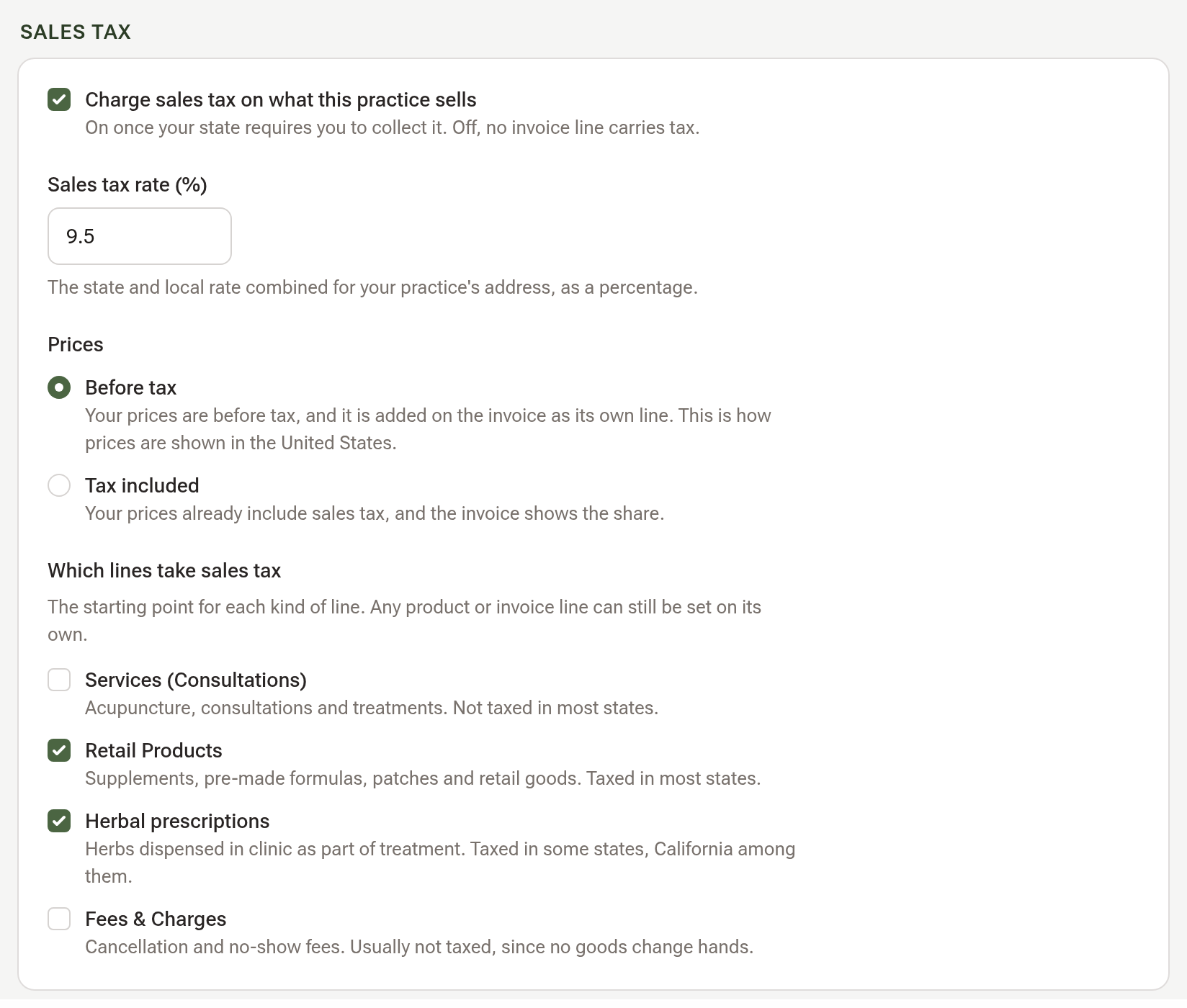
Tick Charge sales tax on what this practice sells, then enter your Sales tax rate (%): the state and local rate combined for your practice's address. Daobook won't switch sales tax on without a rate.
Under Prices, choose Before tax (your prices are before tax and the tax is added on the invoice as its own line, as prices are usually shown in the United States) or Tax included (your prices already include sales tax, and the invoice shows the share).
Step 3: Choose which lines take sales tax
Which lines take sales tax is the starting point for each kind of invoice line:
- Services (Consultations): acupuncture, consultations and treatments. Off to begin with.
- Retail Products: supplements, pre-made formulas, patches and other goods. On to begin with.
- Herbal prescriptions: herbs dispensed in clinic as part of treatment. On to begin with, as California taxes them; untick it if your state doesn't.
- Fees & Charges: cancellation and no-show fees. Off to begin with.
Click Save Changes.
If your practice has more than one location, Share sales tax settings across all locations keeps one set of settings for all of them. Untick it if your locations are in places with different rates.
Step 4: Set a product on its own (optional)
A product follows the default for Retail Products unless you set it otherwise. Open Inventory, edit the product, and under Sales tax choose Use the clinic's default, Always taxed or Never taxed.

Step 5: See it on your invoices
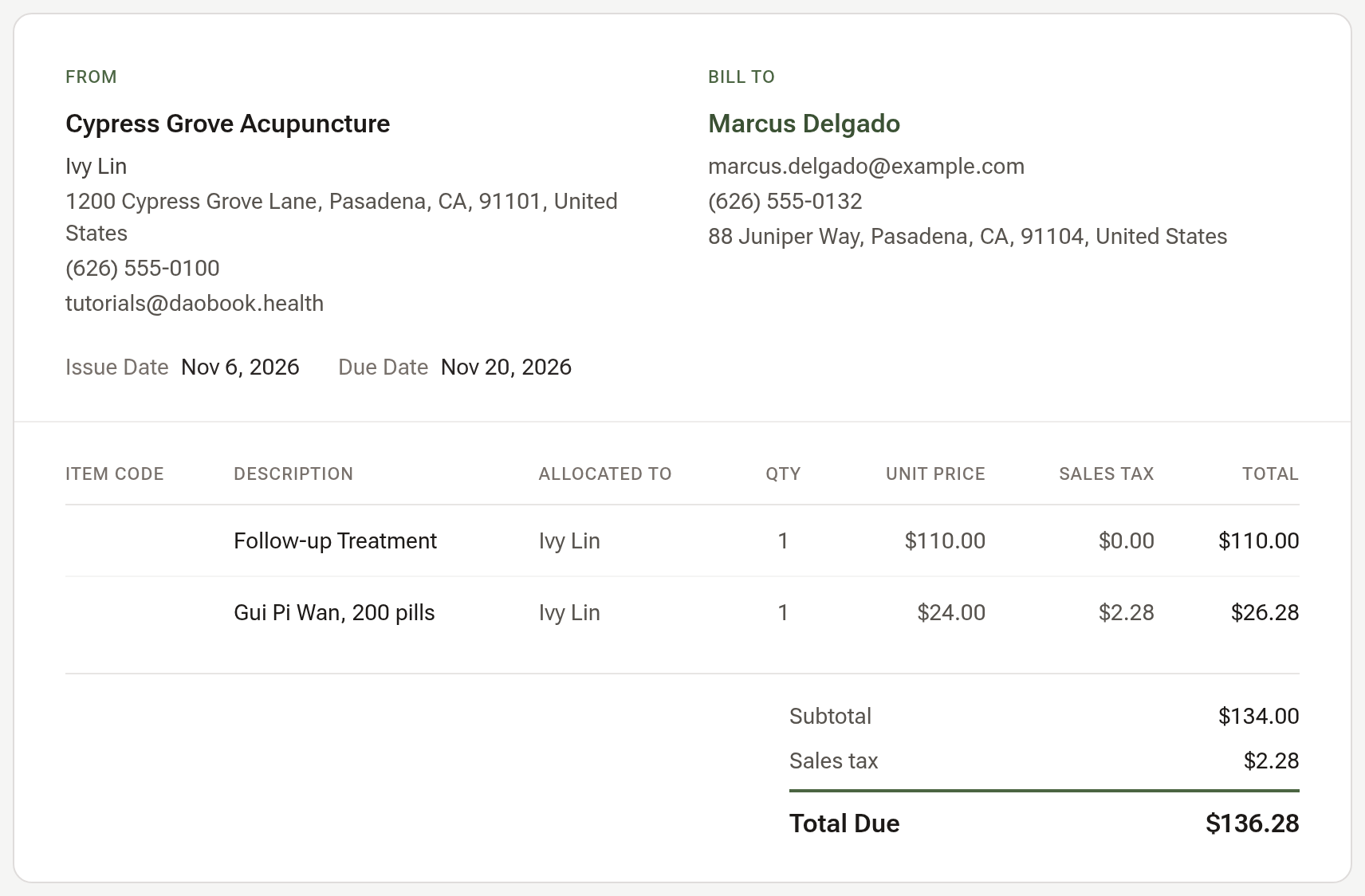
When you create or edit an invoice, the Tax column has a tick for each line: untick it to take the tax off just that line. The saved invoice shows each line's Sales tax, and a Sales tax line above the total. The PDF shows the same.
Tip: The ? beside the Sales Tax Configuration heading opens a short guide to what states usually tax, including California's rules for herbs. It is general guidance only.